How to Use ChatGPT in Google Sheets
Nick Franck • Tutorials • May 1, 2023

You can use ChatGPT’s powerful language capabilities within your Google Sheets with just 2 simple steps.
In this tutorial, we’ll walk through how to create a Google Sheet that utilizes ChatGPT to generate text directly in your spreadsheets.
Step 1: Copy our Google Sheet
- Open our Google Sheet
- Click File -> Make a Copy
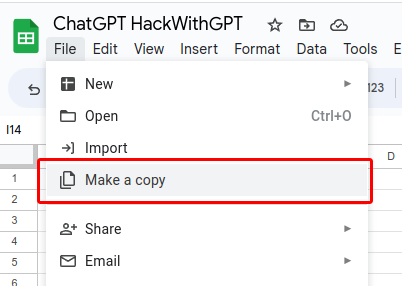
- Click “Make a Copy.” You can also review the attached Apps Script
file to understand the underlying workings of the ChatGPT integration within Google Sheets.
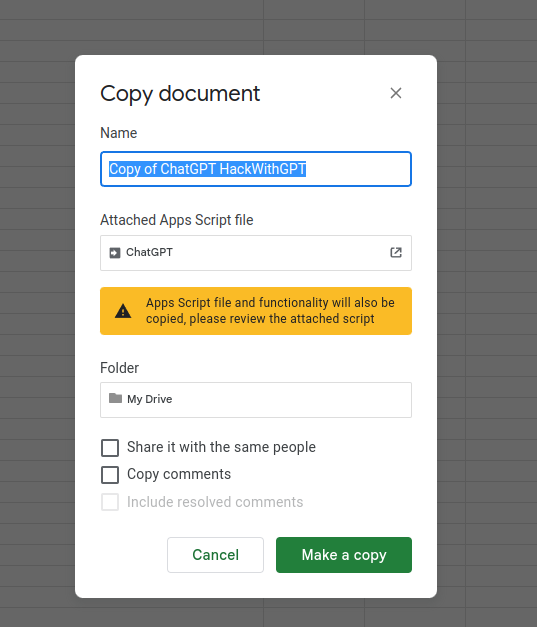
- With your copy of the Google Sheet open, proceed to the next step.
Step 2: Add your OpenAI API Key
-
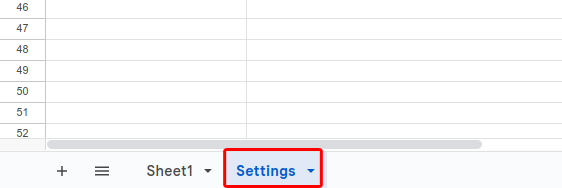
Open the “Settings” sheet by clicking the tab at the bottom of the page.
-
Get your OpenAI API key. If you don’t know how to make one, just follow this guide.
Your API key will look something like this:
sk-JGT******************************************Blb- Copy the key and paste it into cell B2 where it says
your-api-key: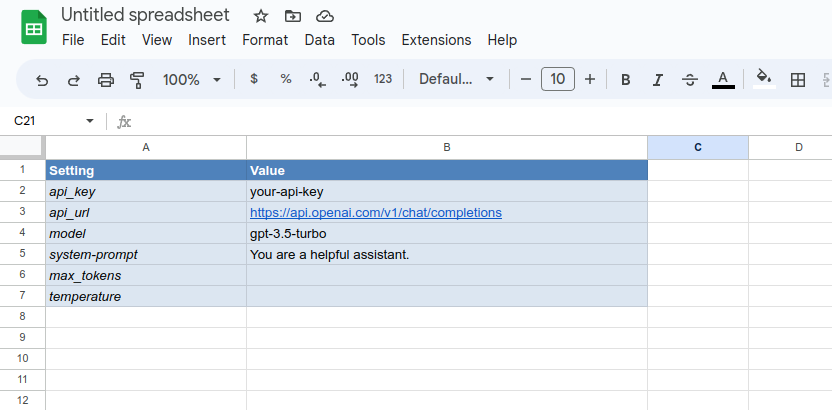
Important: Keep your API key confidential. It is used to track your usage when making requests to OpenAI’s gpt-3.5-turbo or gpt-4 API endpoints.
Step 3: Give it a Spin!
Use the ChatGPT function =GPT in your Google sheet.
Click on a cell and enter:
=GPT("Generate Greek mythology ideas for a novel")It will make a request to OpenAI’s gpt-3.5-turbo / gpt-4 depending on what you have selected in your settings. You should get an output like this:
- The story of Persephone and Hades: The abduction of the daughter of Demeter by Hades and her eventual return to the mortal world.
- The tale of Demeter and her search for her daughter Persephone: Demeter’s desperate search for her daughter and how her absence caused the world to be plunged into darkness.
- …
Customizing Settings
Model
Specify the model ID to use. For most users, “gpt-3.5-turbo” is recommended. If you have access to gpt-4, you can change this setting to “gpt-4” or “gpt4-32k.”
System Prompt
The system prompt has a slightly stronger influence on the output than a normal user prompt. Modify this setting to optimize the behavior of your requests. For instance, if you’re using ChatGPT in Google Sheets to generate email marketing material, you could change this to “You are a professional email marketer.”
Max tokens
To limit the output length, adjust the max_tokens setting. The default value is the maximum allowed by the model:
- 4096 for gpt-3.5-turbo
- 8,192 for gpt-4
- 32,768 for gpt-4-32k
Consider these rough estimates when setting max_tokens:
- 30 tokens is about 1-2 sentences.
- 1 paragraph is about 100 tokens.
Temperature
The temperature setting controls the randomness of the output, with values ranging from 0 to 2. The default value is 1. Higher values, like 1.5, result in more varied outputs, while lower values, such as 0.2, produce more focused and deterministic responses.